
The standard Home Assistant companion app is excellent for immediate pings, but it doesn't provide a persistent history. Once you dismiss a notification on your phone, the data and any associated media are gone.
In this guide, we'll set up Pulsetray as a dedicated inbox for your automations. This allows you to keep a searchable history of notifications and logs on your Android or iOS device, including high-resolution images and video clips.
Initial setup
Before you start, you must download the Pulsetray app and follow the Sign Up steps. Once you're signed in:
- Go to Settings > API keys > Add API key
- Enter a Name for this API key.
- Click on Add key
- On the next screen, copy Token. This token must be copied now, since it is the only time it'll be visible.
Now that you have an API key, you can continue with one of two methods: using a traditional Home Assistant automation, or with node-red.
Method 1: Home Assistant (YAML)
The most straightforward way to integrate is using a rest_command. This allows you to call Pulsetray as a native service within your existing automations and scripts.
1. Configuration
First, we will create a new rest_command within Home Assistant. For this, open the configuration.yaml file, and add the following block to the end of the file. To open the file, you can use the File Editor add-on. Replace YOUR_TOKEN with the API key token we just created.
rest_command:
  pulsetray:
    url: "https://api.pulsetray.com/v1/notifications"
    method: post
    content_type: "application/json"
    headers:
      Authorization: "Bearer YOUR_TOKEN"
    payload: "{{ json_body | to_json }}"
Restart your Home Assistant instance after saving the changes.
2. Usage in Automations
Now, open or create any automation you would like to send notifications from. (Go to Settings > Automations & scenes and Pick an automation, or click on Create automation).
Within the automation, click on Add action > RESTful Command > pulsetray. You can also type in the search bar and find for the action named RESTful Command: pulsetray.
Then, in the RESTful Command: Perform action window, click on the three dots on the top right corner, click on Edit in YAML, and paste the following code:
action: rest_command.pulsetray
data:
  json_body:
    title: "Security Alert"
    body: "The front door was opened at {{ now().strftime('%H:%M') }}"
    androidConfig:
      priority: "high"
Replace title, body and source as your automation requires.
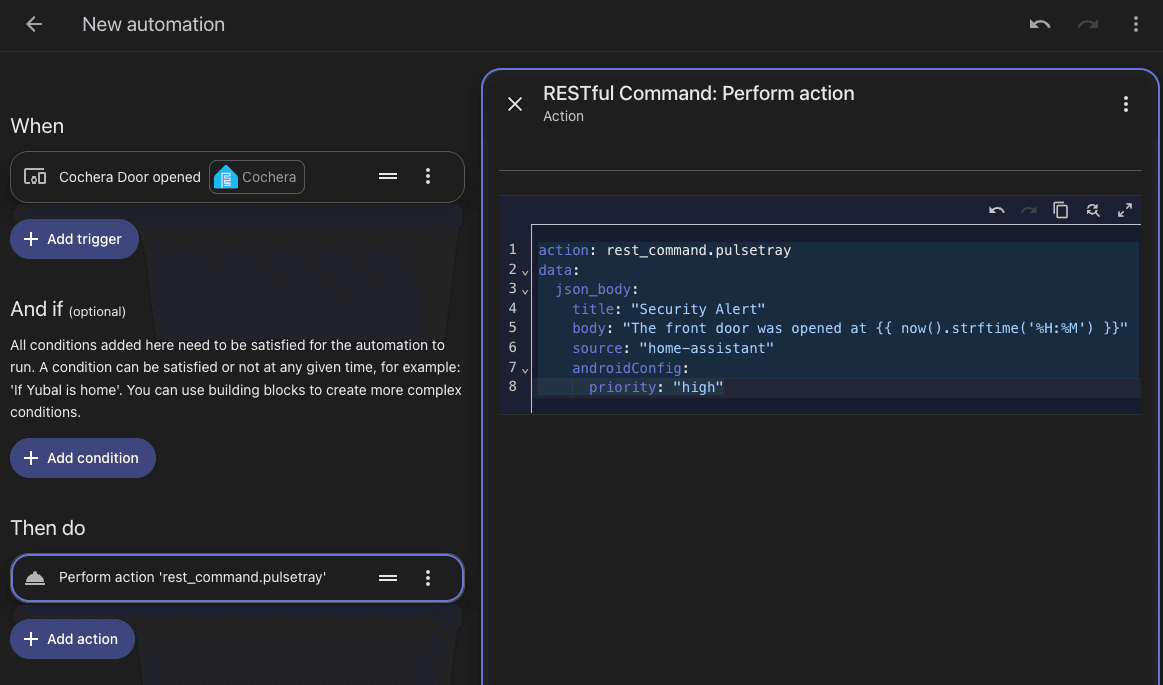
Done! You can test your automation, and you'll receive a notification instantly on your phone.
Method 2: Node-RED
If you are a more experienced user, perhaps you're using Node-RED. For this case, we recommend using a Function Node to build the request and an Exec Node to fire it. This approach is often faster for handling binary media like MP4 camera clips or GIFs.
Function Node Code:
const token = "YOUR_API_TOKEN";
const url = "https://api.pulsetray.com/v1/notifications";

msg.payload = `curl -X POST \
    -H "Authorization: Bearer ${token}" \
    -F "title=Camera Alert" \
    -F "body=Motion detected at ${msg.time}" \
    -F "androidConfig={\\"priority\\":\\"high\\"}" \
    ${url}`;

return msg;
Connect this to an Exec Node and ensure Append: msg.payload is checked. Using curl is significantly faster for binary media than standard HTTP request nodes.
Advanced Tip: The Hybrid Setup
If you're not ready to switch yet, you can continue using the Home Assistant Companion app for your primary push pings while using Pulsetray strictly as a back-end archive.
By adding sendPush: false to your JSON payload, the system will skip sending a notification to your phone's status bar and will only save the record to your tray. This is useful for high-frequency logs that you want to review later without being interrupted by constant vibrations.
That's not it!
You can also use sources and categories to organize all of your notifications, and even attach images and videos. You can see detailed information in the Pulsetray Documentation.
Ready to stop losing your alerts? Download Pulsetray and get your first 300 notifications per month for free.